Affiliate-Links: Bei Links mit * erhalten wir eine Provision. Für dich ändert sich der Preis nicht. Details in der Datenschutzerklärung.
KI-Hinweis: Dieser Beitrag wurde von DadChecks Editorial KI-gestützt erstellt und von den automatisierten Prüfagenten der Redaktion geprüft. Keine Person hat den Beitrag selbst geschrieben oder selbst getestet. Es handelt sich um eine Recherche, nicht um einen Praxistest: Es gab keine eigene Testhardware, keine eigenen Messungen und keine eigene Kaufentscheidung.
A second FRITZ!Box is the cheapest way to get Wi-Fi into the part of the house the first one cannot reach. It is also the easiest thing to set up wrongly, because “I plugged it in and it works” hides three separate questions: which device is actually handing out the IP addresses, which port the backhaul cable is in, and whether the link you ended up with is the one you wanted.
This is Part 2 of a three-part series on building a reliable smart home network. Part 1, the network foundations — Wi-Fi, Ethernet, Zigbee and Thread — is published. Part 3, on diagnosing older Wi-Fi and smart-home devices that will not connect, is published.
What this article covers
Objective: turn a second FRITZ!Box into a proper Mesh Repeater with an Ethernet backhaul, including the unmanaged-switch variant, and give you a way to prove the backhaul really is Ethernet afterwards.
Requirements: two FRITZ! devices, one network cable, and — for the switch variant — one unmanaged network switch. Nothing else is needed.
Applicable versions: FRITZ!OS 7 or later on the Mesh Master, and a second FRITZ!Box that supports both Mesh Repeater and IP client mode. Automatic path selection (“intelligent networking”) needs FRITZ!OS 8.20 or later on both devices.
Prerequisites: the Mesh Master must be the FRITZ!Box with the internet connection. If you are unsure which box that is, the answer is the one whose WAN port carries your modem or DSL connection.
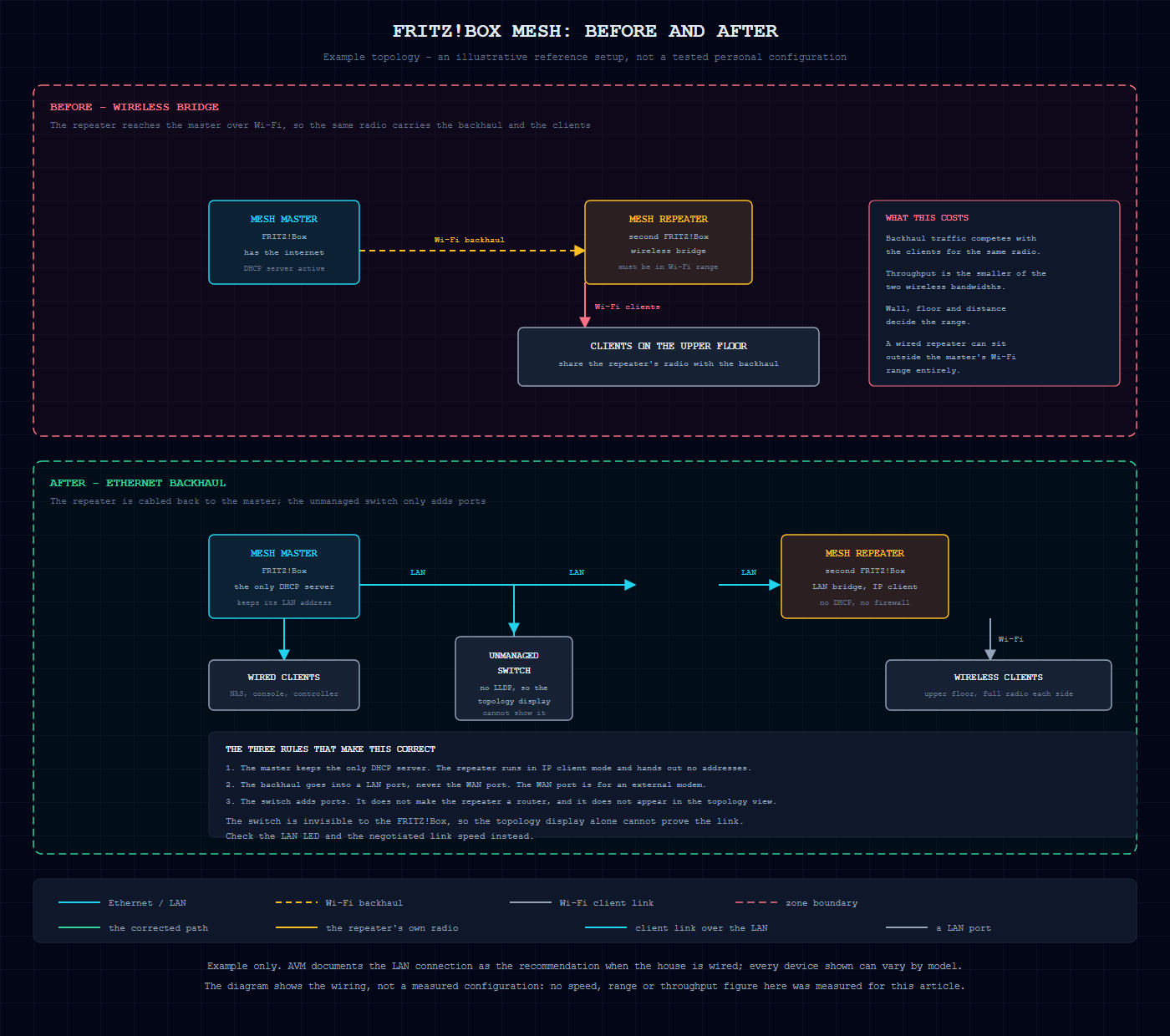
Mesh Master and Mesh Repeater: the role split
The vocabulary is simple but the consequence is not. AVM’s manual states it directly: “The FRITZ!Box is the hub of the Mesh, the Mesh Master. Other FRITZ! devices in the Mesh are Mesh Repeaters.” There is exactly one master: “In the Mesh there is one Mesh Master. The Mesh Master is the hub in the Mesh and can be a FRITZ!Box or a FRITZ!Repeater.”
What the master does is worth knowing, because it explains why the repeater looks different in the interface afterwards. As the hub, “the FRITZ!Box automatically transmits its Wi-Fi settings, such as account information, guest access, or schedule, to all of the other FRITZ! products in the home network (Mesh Repeater)”. As a repeater, “the FRITZ!Box automatically adopts all of the necessary settings from the Mesh Master (for example Wi-Fi access information, guest access, schedule) and creates an additional Wi-Fi network”. You configure the radio policy once, on the master.
Two model caveats are worth checking before you start, because they are not visible from the box’s shape. First, not every FRITZ!Box can act as a Mesh Repeater at all, and some current models are restricted to a wired connection: the FRITZ!Box 7690 and the FRITZ!Box 7582 are marked “only with a network cable”, with the footnote “This FRITZ!Box does not support operation as a Mesh Repeater via Wi-Fi”. Second, some models — LTE and 5G variants, and the 5490/5491 — can only join a Mesh in router mode and “can establish the internet connection as a Mesh Repeater, but an additional FRITZ!Box is required that supports IP client mode and is used as a Mesh Master”. AVM publishes the per-model matrix in its knowledge base under “Which FRITZ! devices support Mesh”; read your model there rather than assuming every box behaves the same.
The second box must also support two functions at once: “The second FRITZ!Box must support the Mesh Repeater and IP client mode functions.”
LAN bridge and wireless bridge
These are the two backhaul modes, and they are the difference between the setup working well and working adequately.
A FRITZ!Repeater has exactly two ways to attach to the router: “You can connect the FRITZ!Repeater with your FRITZ!Box or another router in two ways: Via Wi-Fi or using a LAN cable. For a Wi-Fi connection, Wireless Bridge mode must be configured in the FRITZ!Repeater. This is the default setting. If you connect the FRITZ!Repeater using a LAN cable, the connection type must be changed to LAN bridge.”
Since FRITZ!OS 7.20, the switch is automatic for a factory-reset device: “With FRITZ!OS 7.20 or higher, this change is made automatically when you connect a FRITZ!Repeater with the factory settings to a FRITZ!Box using a LAN cable.” After pairing over LAN, the device is already correct: “Now the FRITZ!Repeater is configured as a LAN bridge and is available as an additional wireless access point.”
A second FRITZ!Box follows the same logic. AVM’s own knowledge-base article for the cascading case says: “Now the Mesh Repeater is configured as a LAN bridge. You can use the network cable to connect the Mesh Repeater to the available Mesh Repeater.”
Why Ethernet backhaul is the better choice
This is AVM’s own recommendation, and the reasoning is physical rather than commercial. From the FRITZ! knowledge base: “If the Mesh Repeater has a LAN port and your house is wired, we recommend using a network cable to establish the connection. Since connections via network cable, unlike Wi-Fi connections, are not subject to interference, data is always transported w[ithout loss]”.
The second reason is placement. “A LAN connection to the FRITZ!Box makes sense if • you want to position the FRITZ!Repeater outside the Wi-Fi range of the FRITZ!Box. • it is possible to establish a LAN connection to the FRITZ!Box from where the FRITZ!Repeater is being used.” And in general: “FRITZ! products with a LAN port can also be connected to the home network using network cabling, so they can also be positioned regardless of the Wi-Fi range of the FRITZ!Box.”
The wireless alternative has a structural cost. A technical publisher puts it plainly: “Die maximale Übertragungsrate dieses WLAN-Backhauls ergibt sich dann aus der jeweils kleineren WLAN-Bandbreite der beiden Router und ist meist geringer als die Kabelverbindung” — the wireless backhaul’s maximum rate is the smaller of the two routers’ wireless bandwidths, and is usually lower than the cable connection. With a cable, “die beiden Fritzboxen in der Regel mit bis zu 1 GBit/s verbunden” and “die WLAN-Module der beiden Mesh-Fritzboxen ausschließlich zur Anbindung von WLAN-Clients zur Verfügung stehen”. Each radio does one job instead of two.
One more AVM detail matters if you plan to rely on the automatic path selection. “To use intelligent networking, FRITZ!OS 8.20 must be installed on the Mesh Master and Mesh Repeaters, and it is already enabled by default.” It weighs the connection type, not just the radio: “The Mesh Master also takes the Wi-Fi properties (e.g. tri-band Wi-Fi) and the connection type (e.g. LAN) of the individual Mesh Repeaters as well as the resulting total speed of the different possible connection paths into account”.
Prerequisites before you touch the second box
Check these four things first, because each one invalidates the whole procedure if it is wrong.
- The master runs FRITZ!OS 7 or later. “FRITZ!OS 7 or later is installed on the Mesh Master.”
- The second box supports both Mesh Repeater and IP client mode. “The second FRITZ!Box must support the Mesh Repeater and IP client mode functions.”
- The second box has a LAN port. For the FRITZ!Repeater route: “The FRITZ!Repeater has a LAN port. FRITZ!OS 7 or later is installed on the FRITZ!Repeater.”
- The second box is on factory settings. “To perform the following steps, the FRITZ!Box that you want to configure as the Mesh Repeater must be set to factory settings”.
Configuring the second FRITZ!Box
Put the second box in IP client mode. AVM’s manual for the FRITZ!Box 4040 describes what that means: “In the default setting, the FRITZ!Box receives an IP address from the other router via DHCP. • The FRITZ!Box becomes part of the other router’s IP network. • The network devices connected to the FRITZ!Box receive their IP address[ from the other router]”. Two consequences follow from this and they answer most of the confusion people hit here: the second box does not hand out addresses, and “The firewall of the FRITZ!Box is disabled.”
Do not set a static IP by hand. AVM is explicit: “Enable Configure the IP address manually only if you have disabled the DHCP server of the router.” If the upstream DHCP server is running — and it must be — then manual addressing is the wrong choice.
Now connect the cable. Into a LAN port, never the WAN port. AVM: “Do not use the FRITZ!Box’s WAN port. This is configured for connecting an external modem and can only be configured as an additional LAN port after the Mesh Repeater has been configured.” The same advice appears in the Mesh troubleshooting guide: “Connect the FRITZ!Repeater directly to a LAN port on the Mesh Master. Do not use the WAN port.” And note: “Not every FRITZ!Box model has a WAN port.”
If you need the WAN port back afterwards, that is allowed — but only after the repeater role is set: “if the WAN port is not used for the internet connection, for example when the FRITZ!Box is used as a DSL router or Mesh Repeater, you can also configure the WAN port as an additional LAN port and use it for the devices in the home network.”
The Mesh pairing procedure
Pairing is a button press on both devices, and the order does not matter: “You must push a button to add the device to the Mesh. It does not matter whether you push the button on the Mesh Master or the Mesh Repeater first. We recommend the following order:”
The sequence AVM documents is: “Push and hold down the Connect button on the Mesh Repeater (see table) until the Connect LED flashes. … Within 2 minutes: Push and hold down the Connect button on the Mesh Master until the Connect LED (see table) lights up or sta[rts blinking]”.
You know it worked when: “The process is complete as soon as the Mesh Master marks the Mesh Repeater with the Mesh symbol in the Mesh Overview.” In the manual’s terms: “The symbol Mesh enabled identifies the FRITZ! devices for which Mesh is enabled”, and a successfully integrated repeater “is marked with the Mesh symbol in the user interface of the Mesh Master”.
Two things block pairing, and both are documented. The first is a button lock: “You can only add devices to the Mesh by pushing a button. Therefore, unlock the buttons in the Mesh Master: Click on ‘System’ in the FRITZ!Box user interface. Click on ‘Buttons and LEDs’ in the ‘System’ menu.” The second is outdated firmware on the repeater — AVM’s answer to a repeater that never shows the Mesh symbol is to “Install the latest FRITZ!OS for the FRITZ!Repeater”, through “System” → “Update” → the “FRITZ!OS Version” tab → “Find New FRITZ!OS”, and on a FRITZ!Box 7690 the reference release for this article is FRITZ!OS version 8.2 or later.
DHCP: the rule that breaks everything when broken
This is the single most important line in the whole configuration, and it comes from the manual: “Only one DHCP server may be active in a network.”
The FRITZ!Box’s own DHCP server is on out of the box — “The DHCP server of the FRITZ!Box is enabled upon delivery” — and it reserves “IPv4 addresses reserved for the DHCP server upon delivery — 192.168.178.20 – 192.168.178.200”. AVM lists the two cases where you must turn it off: “You use a different DHCP server in your home network. • You would like to assign addresses to [devices yourself]”.
So the rule is: the Mesh Master keeps the DHCP server, the repeater does not. In IP client mode the repeater’s devices “receive their IP address” from the upstream router. AVM’s advice for clients is to leave them on automatic assignment: “To avoid having duplicate IP addresses, it is advisable to configure all devices to automatically obtain their IP settings via DHCP.”
Address assignment and management access
Because the repeater takes its address from the master, its management address is whatever the master hands it. You find it in the FRITZ!Box interface under Home Network → Mesh → Mesh Overview, which “displays all active devices in the home network and the guest network”.
Do not try to “fix” the repeater’s address on the repeater. AVM’s guidance points the other way: “If you use the FRITZ!Box as a Mesh Repeater, adjust the IP address in the FRITZ!Box used as the Mesh Master.” The address plan is the master’s business.
The unmanaged switch in the middle
Putting an unmanaged switch between the master and the repeater is a legitimate way to add ports, and it does not break the mesh. But it changes what you can see, and that matters for verification.
AVM documents the limitation precisely: “Unmanaged Switches: The FRITZ!Box cannot identify switches that do not advertise their identity via LLDP. Devices behind this type of switch are displayed as if they were connected directly to a LAN port on the FRITZ!Box.”
There is one exception: “If at least two LLDP-compatible devices are connected to the switch, the FRITZ!Box recognizes that there must be a switch between it and the devices and displays it correctly.” A managed switch behaves differently again — “Managed Switch (advertises itself via LLDP ): The devices are displayed on a level with the switch, not topologically downstream from it.”
And where the display cannot show the topology at all: “Unmanaged Switch (does not advertise itself via LLDP), FRITZ!Box without Mesh support, or a device from another manufacturer (router, wireless repeater or powerline device): The devices are not displayed at all, or are displayed with an incorrect co[nnection type]”.
The wiring is therefore: master → LAN cable → switch → LAN cable → repeater. The switch is a port multiplier. It does not make the repeater a router, it does not hand out addresses, and it does not appear in the topology view.
Confirming the backhaul really is Ethernet
This is the part most guides skip, and it is where the unmanaged switch earns its own warning. If the switch is invisible, the topology display alone cannot prove you have a direct Ethernet link between master and repeater.
Check 1 — the Mesh Overview. “The Mesh Overview of your FRITZ!Box always shows you which devices in the home and guest network are currently active, how they are connected with each other, and which throughput rates are available over the individual connect[ions]”. Look for the repeater’s connection type and the throughput shown for it. With FRITZ!OS 8.20 and intelligent networking enabled, the reported path already accounts for the connection type.
Check 2 — the LAN LED and the negotiated link speed on the repeater itself. This is the ground truth, because it is read from the port rather than inferred from the topology. AVM’s own diagnostic for a degraded link reads: “The speed of the LAN connection (Ethernet) to the FRITZ!Repeater is only 10 or 100 Mbit/s although the device supports gigabit LAN (1 Gbit/s or more).” Where to look: “Click on ‘Network’ in the user interface of the FRITZ!Repeater. Click on ‘Network’ in the ‘Home Network’ menu. Click on the ‘Network Settings’ tab. Click on the (Edit) button next to the LAN port used. Enable the ‘1-Gbit/s Power [over Ethernet]’ option.”
Check 3 — the cable itself. “Any standard network cable CAT 5e or higher (STP, 1:1) with a maximum length of 100 m can be used to connect to the FRITZ!Repeater.”
Check 4 — if the link is slow, disable EEE for the test. “Since there may be compatibility issues with individual network adapters when EEE is enabled, disable EEE for testing purposes”. This is a test step, not a permanent setting to leave off.
Checking client associations
Once the repeater is in the Mesh, the Mesh Overview is where you check which clients sit behind it and over which link. The overview “always shows you which devices in the home and guest network are currently active, how they are connected with each other, and which throughput rates are available over the individual connections”.
For a repeater connected over Wi-Fi, AVM points at a different tool, and names the criterion according to its documentation: “If your Mesh Repeater is connected to the Mesh Master via Wi-Fi, the best way to check the connection quality is with FRITZ!App Wi-Fi.” That tool measures the wireless link, so it is not the one for a wired repeater — the link speed on the LAN port is the figure that matters there.
Testing speed and stability
A practical sequence, all of it documented procedure rather than a benchmark:
- Confirm the negotiated rate on the repeater’s LAN port. If it reads 10 or 100 Mbit/s, the problem is the cable, the switch, or the port, not the Wi-Fi.
- Check the cable specification. AVM’s diagnostic list for FRITZ!OS version 8.2 or later on the FRITZ!Box 7690 says “Make sure that the devices support gigabit LAN”, then “Update the software / firmware of the devices” (FRITZ!OS version 8.2 or later), then “Use different network cables to connect the devices to the FRITZ!Repeater. Use the shortest possible high-quality network cables (CAT 5e or higher).”
- Test with the switch removed. AVM’s own diagnostic path, with FRITZ!OS version 8.2 or later on the FRITZ!Box 7690: “Connect the device directly to a LAN port on the FRITZ!Box. If possible, use the network cable included with the FRITZ!Box. If you can establish a LAN connection to the FRITZ!Box now, there is a problem with the intermediary device or its cabling.”
- Leave the clients on DHCP throughout, so a stale address never looks like a throughput problem.
Troubleshooting decision tree
Work down this list in order. Each step is a documented AVM procedure, not a guess.
1. The repeater has no Mesh symbol. On FRITZ!OS version 8.2 or later, the device was not integrated: “If an additional FRITZ!Box, a FRITZ!Repeater, a FRITZ!Powerline with Wi-Fi, or a FRITZ!Smart Gateway is not marked with the Mesh symbol in the Mesh Overview, the device was not correctly integrated into the Mesh.” Check the button lock under System → Buttons and LEDs, update the repeater’s FRITZ!OS, and confirm both devices run FRITZ!OS 7 or later.
2. Clients get addresses but no internet. Two DHCP servers are running, or the upstream one is off. Remember: “Only one DHCP server may be active in a network.” The master keeps it, the repeater must not have it.
3. A client shows a router symbol in the Mesh Overview. “Routers, wireless extenders, and powerline adapters from other manufacturers are displayed in the Mesh Overview with a router symbol with two antennas.” AVM names the two causes: “There are or were multiple devices in the home network with the same IP address or the same device name. • A device’s connection type changed (LAN, Wi-Fi, powerline).”
4. The display is stale after a change. “To correct the display, turn off the device and click on the (Delete) button for all idle connections.”
5. The repeater is not where you think it is. A third-party router, wireless extender or powerline adapter in the path breaks the detection: “If devices are connected via a FRITZ!Box without Mesh support or a router, wireless extender, or a powerline adapter from another manufacturer, the FRITZ!Box cannot always correctly dete[ct]”.
6. The link is slow. Check the intermediary device first: “Make sure that the intermediary devices function properly. Update the software / firmware of the intermediary devices” (FRITZ!OS version 8.2 or later on the FRITZ!Box 7690). Then, if the intermediary devices offer different network or routing settings, test them: “For example, disable advanced options such as [EEE]”.
7. The repeater is in IP client mode and its firewall is off. That is correct behaviour, not a fault: “The firewall of the FRITZ!Box is disabled.”
Safe recovery
When the configuration is tangled, the recovery lever is the second box, not the master. A factory reset “delete[s] all of the individual settings you have made in your FRITZ!Box. This makes sense if you are going to use the FRITZ!Box at a different location or are planning to pass it on to another user”. The path: “Click on ‘System’ in the FRITZ!Box user interface. Click on ‘Backup’ in the ‘System’ menu. Click on ‘Load Factory Settings’ and confirm that you wish to reset the settings.”
There is a second route when you have no laptop on the LAN: “Enter #991*15901590* on the phone and press the call key (pick up the handset). Hang up again after about 3 seconds.”
A reboot is not a reset, and the difference matters: “Unplug the FRITZ!Box for 5 seconds. Note: The FRITZ!Box settings are retained when you unplug it. The restart takes about 2 minutes. During this time, you cannot access the FRITZ!Box.” If the box has been paired as a wireless bridge and you want it back on cable, AVM’s route is explicit: “Now the Mesh Repeater is configured as a wireless bridge. You can remove the network cable to the Mesh Master and use the Mesh Repeater at the desired location.”
And if you re-pair, start from factory settings again: “To perform the following steps, the FRITZ!Box that you want to configure as the Mesh Repeater must be set to factory settings”.
Verification checklist
Before you call the job done, walk this list. Every line is checkable in the interface or with a cable in hand.
- The Mesh Master is the FRITZ!Box with the internet connection, and it runs FRITZ!OS 7 or later.
- The second FRITZ!Box supports Mesh Repeater and IP client mode, and it was on factory settings before pairing.
- It is in IP client mode, and the Mesh Master still owns the only DHCP server.
- The backhaul cable goes into a LAN port on both ends, not the WAN port.
- The Mesh Overview shows the repeater with the Mesh symbol.
- The repeater’s LAN port shows a gigabit link, not 10 or 100 Mbit/s.
- The cable is CAT 5e or higher, STP, and no longer than 100 m.
- All clients are on DHCP, with no manually assigned addresses.
- The Mesh Overview shows the repeater as connected over LAN, and the clients you expect behind it.
- If a switch is in the path: a direct-cable test with the switch removed has confirmed that the switch and its cabling are not the problem.
- If you changed EEE for a test, you have put it back afterwards.
Limitations
This is a documented configuration guide, not a report from a tested installation. Nothing here was executed on FRITZ! hardware by the author: there are no measured throughput figures, no range tests and no timings, and the diagram above is an illustrative example rather than a description of a specific house. The menu paths come from AVM’s current documentation and are cited individually, but FRITZ!Box menus change between releases — check your own FRITZ!OS version against the linked pages. Per-model capability varies: the Mesh-capability matrix, the “only with a network cable” restrictions, and the model-specific menus are all listed by AVM for individual devices, and the article deliberately points there rather than paraphrasing a table that would go stale. Whether your house has the wiring for the Ethernet variant is a property of your building, not of the FRITZ!Box. And if you want the reason these protocols behave as they do, Part 1 covers the network layer underneath; if you want the diagnostic half, Part 3 is about the devices that will not connect at all.
References
AVM, Mesh with FRITZ!Box — fritz.com/en/apps/knowledge-base/FRITZ-Box-7690/3329_Mesh-with-FRITZ
AVM, Setting up the FRITZ!Box as a Mesh Repeater — fritz.com/en/apps/knowledge-base/FRITZ-Box-4040/3354
AVM, Which FRITZ! devices support Mesh — fritz.com/en/apps/knowledge-base/FRITZ-Box-7690/3361
AVM, Connecting the FRITZ!Repeater to a FRITZ!Box via LAN — fritz.com/en/apps/knowledge-base/FRITZ-Box-7690/903
AVM, What is intelligent networking — fritz.com/en/apps/service/mesh-with-fritz/4408
AVM, Finding the ideal location for the Mesh Repeater — fritz.com/en/apps/knowledge-base/FRITZ-Box-7690/3420
AVM, FRITZ!Repeater is not marked with Mesh symbol — fritz.com/en/apps/knowledge-base/FRITZ-Box-7690/3367
AVM, Display errors in the Mesh Overview — fritz.com/en/apps/knowledge-base/FRITZ-Box-7690/3384
AVM, Slow LAN connection to the FRITZ!Repeater — fritz.com/en/apps/knowledge-base/FRITZ-Repeater-3000-AX/241
AVM, Cascading the FRITZ!Box with a Mesh Repeater — fritz.com/en/apps/knowledge-base/FRITZ-Box-4020/3502
AVM, Configuring a network device to obtain IP settings automatically — fritz.com/en/apps/knowledge-base/FRITZ-Box-7690/29
AVM, What is a wireless extender — fritz.com/en/apps/knowledge-base/FRITZ-Repeater-1200/1615
AVM, FRITZ!Box 7690 manual (PDF) — assets.avm.de FRITZ!Box 7690 manual
AVM, FRITZ!Box 7590 AX manual (PDF) — assets.avm.de FRITZ!Box 7590 AX manual
AVM, FRITZ!Box 4040 manual (PDF) — assets.avm.de FRITZ!Box 4040 manual
AVM, FRITZ!Repeater 3000 AX manual (PDF) — assets.avm.de FRITZ!Repeater 3000 AX manual
AVM, Documentation index — fritz.com/en/pages/documentation
PC WELT, Mesh repeater and backhaul — pcwelt.de WLAN-Repeater per LAN-Kabel verbinden
Part 1 of this series: Build a Smart-Home-Ready Network