Affiliate-Links: Bei Links mit * erhalten wir eine Provision. Für dich ändert sich der Preis nicht. Details in der Datenschutzerklärung.
KI-Hinweis: Dieser Beitrag wurde von DadChecks Editorial KI-gestützt erstellt und von den automatisierten Prüfagenten der Redaktion geprüft. Keine Person hat den Beitrag selbst geschrieben oder selbst getestet. Es handelt sich um eine Recherche, nicht um einen Praxistest: Es gab keine eigene Testhardware, keine eigenen Messungen und keine eigene Kaufentscheidung.
Some device will not join the network. The failure always looks the same from the outside — a device that should be working is not — and almost every guide starts by telling you to check the band steering. That is the wrong first move, and AVM’s own documentation says why: band steering is a steering feature for clients that already support several bands, it needs specific client-side standards to work at all, and it is switched off entirely when your two bands have different names.
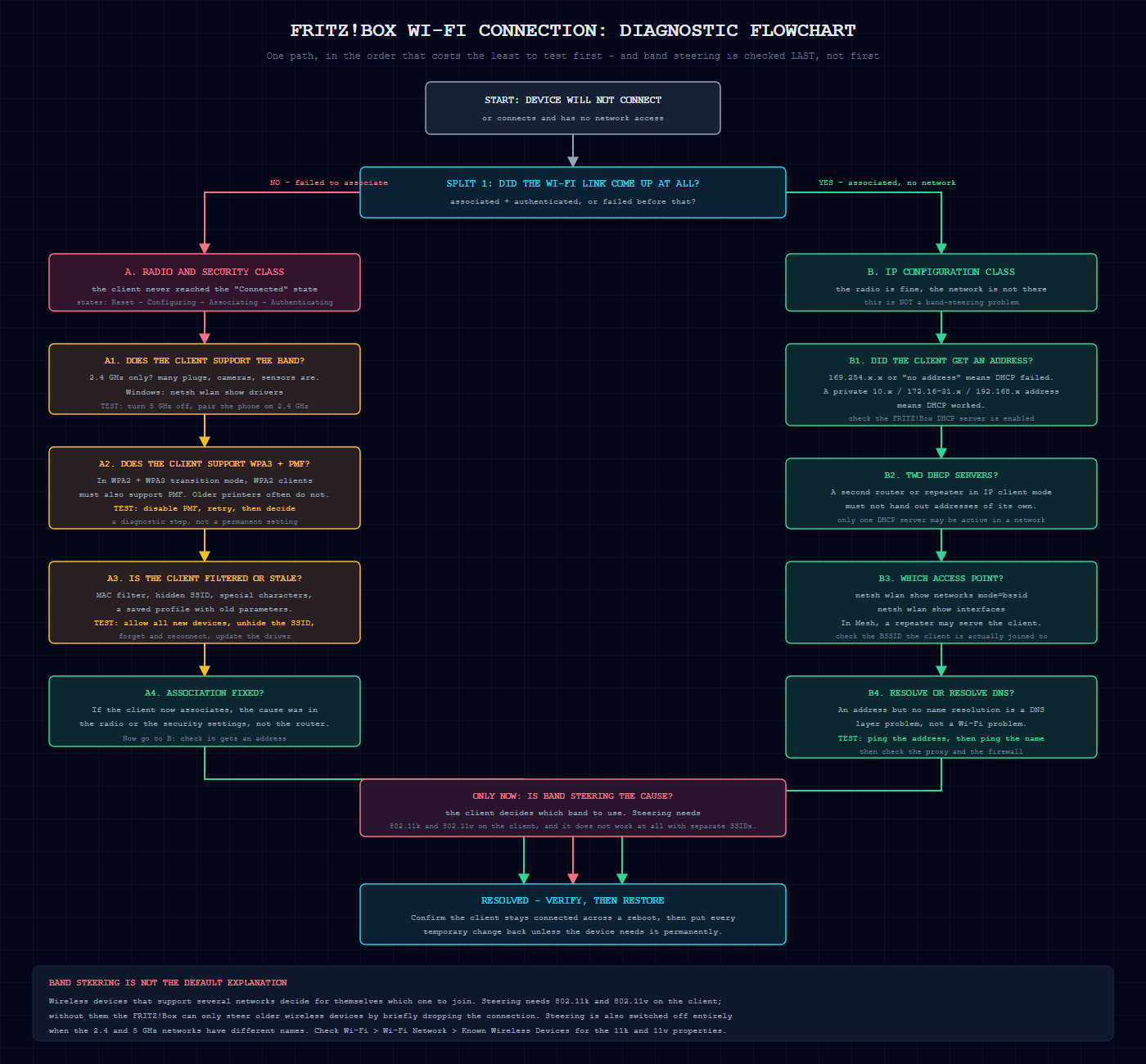
What follows is a different order. First decide which kind of failure you have, because that single question eliminates half the possibilities before you touch a setting.
This is Part 3 of a three-part series on building a reliable smart home network. Part 1, the network foundations, is published. Part 2, the FRITZ!Box Mesh with Ethernet backhaul, is published.
What this article covers
Objective: give you a reproducible sequence for diagnosing a Wi-Fi connection failure on a FRITZ!Box, from the first split to the confirmation that the problem is actually fixed.
Requirements: access to the FRITZ!Box user interface, and — for the Windows steps — a command prompt. No new hardware is needed for any step in this article.
Applicable versions: the FRITZ!Box menu paths are from AVM’s current documentation for the FRITZ!Box 7590 and the FRITZ!Box 7582. The WPA3 behaviour described here is the “WPA2 + WPA3” transition mode those boxes ship in.
Prerequisites: none, but read Part 1 first if you have not decided which protocol your device speaks — a 2.4 GHz-only plug and a WPA3 laptop fail for completely different reasons.
The first split: association or IP configuration
Windows exposes this distinction explicitly, and it is the cleanest diagnostic tool in this whole article. The Wi-Fi connection state machine has these states: “Reset – Ihv_Configuring – Configuring – Associating – Authenticating – Connected – Roaming – Wait_For_Disconnected – Disconnecting”.
That gives you three outcomes, and each one points at a different set of causes:
- “Wi-Fi remains associated but network access fails” — the radio and the security handshake worked. “Verify that Wi-Fi association completed successfully, and then continue with TCP/IP, DHCP, DNS, proxy, or firewall troubleshoot[ing]”.
- “A connection attempt fails during association or authentication.” — this is a radio-and-security class of problem, and it is not a network-configuration problem at all.
You do not need Windows to make the split. Ask the client directly: does it show the network and offer to connect, and then fail? Or does it show an address (192.168.178.x, 10.x, or 172.16-31.x) and still have no network? The first is an association failure, the second is an IP configuration failure, and the two lead to completely different checklists.
Branch A: the device never associates
A1. Check what the client radio actually supports
Before blaming the router, check the client. AVM’s guidance is direct: “Refer to the manufacturer for information on the maximum gross data rates and other properties of the wireless device (supported Wi-Fi standards, frequency bands, data streams, and channel bandwidths), for example consult the manual.”
On Windows you can read it directly: “You can also check to see if your network adapter supports by opening the Command Prompt (or Terminal), and then typing the command netsh wlan show drivers . Look next to Radio types supported and see if it includes 802.11be (for Wi-Fi 7) or 802.11ax (for Wi-Fi 6/6e) and look under Authentication and cipher supported in infrastructure mode and see if it includes WPA3 Personal and WPA3 Enterprise .”
And the reason 2.4 GHz matters for smart-home gear is compatibility, not speed. AVM lists “Not as widely used by IoT devices” among the 5 GHz drawbacks, and Microsoft’s own guidance notes the “Better universal compatibility (more wireless devices support 2.4 GHz compared to 5 and 6 GHz)”.
The safe temporary test: AVM documents exactly this for devices that will not connect. “Disable the option ‘5 GHz frequency band active’ in the section ‘Active Frequency Bands’. If only one frequency band is displayed, enable the Advanced View first.” Their worked example is the smart-home case: “Some wireless plugs, robotic vacuum cleaners, and other wireless devices that are connected via app only support the 2.4 GHz frequency band. To set up the Wi-Fi connection, the mobile device with the app must be connected to the 2.4 GHz Wi-Fi network of the FRITZ!Box. Therefore, deactivate the FRITZ!Box’s 5 GHz Wi-Fi network before setting it up.”
Turn the band back on afterwards. It is a test, not a configuration.
A2. Check the security mode: WPA3 transition and PMF
This is the compatibility trap that catches most people with older printers and older IoT hardware, and it is specific rather than general.
The FRITZ!Box ships with WPA3 enabled in transition mode: “The FRITZ!Box supports the Wi-Fi encryption standard WPA3 with the WPA3 transition mode ‘WPA2 + WPA3’. This mode allows the FRITZ!Box to establish simultaneous connections with WPA[2 and 3]”.
Here is the part that bites: “With WPA2 connections, however, WPA3 transition mode has higher security requirements than usual for WPA2 (CCMP). For example, this means that WPA2 devices must use PMF (Protected Management Frames).” A device that does not implement PMF cannot use WPA2 against that box at all.
AVM ships the escape hatch in the factory settings: “To ensure that these wireless devices can also connect to the FRITZ!Box, the Wi-Fi security settings are already optimized in the factory settings of the FRITZ!Box. You can disabl[e] …”
And they document disabling PMF as a diagnostic step, with the reason: “Some wireless devices, for example older wireless printers, cannot establish a Wi-Fi connection if PMF is enabled”. Their instruction is to “Disable the option ‘Enable support for protected logins by w[ireless clients]'”, and they explain what you are giving up: “PMF (Protected Management Frames) encrypts the control information for establishing and using Wi-Fi connections, thus ensuring greater security. PMF is always en[abled]…”
Be clear about what a PMF downgrade means. It weakens the protection on the management frames, which are the control information for the connection itself. It is a legitimate, documented, reversible test to confirm the diagnosis. It is not something to leave disabled for every device in the house permanently, because then every device gets the weaker setting rather than only the one that needs it.
A3. Check the filters, the SSID and the saved profile
MAC filtering. AVM’s diagnostic step: “Enable the option ‘Allow all new wireless devices’.” If the device connects with that on, the filter was the cause.
Hidden SSID. AVM’s documentation is unusually firm about this: “Important: If the name of the Wi-Fi network is hidden, errors may occur with Wi-Fi connections. For smooth operation as intended, we recommend not hiding the Wi-Fi network name.” According to AVM, the criterion behind that recommendation is smooth operation of the Wi-Fi connections, and the stated reason is that errors may occur with Wi-Fi connections when the name is hidden; unhide it rather than debugging the client.
Special characters. “If you changed the name of the FRITZ!Box’s Wi-Fi network (SSID), remove all special characters from the Wi-Fi network name. Since some wireless devices do not support all of the s[pecial characters]…” Letters, digits and spaces only.
Saved network profile. A stale profile is a real failure mode and the client-side repair is documented: “Step 3. Forget and reconnect to the Wi-Fi Network – In the Settings app on your Windows device select Network & internet > Wi-Fi , then select Manage known networks . – Select you[r network]”. The command-line equivalent enumerates and deletes them: “netsh wlan show profiles” and “netsh wlan delete profile [name=]<string> [[interface=]<string>]”.
Why a profile goes stale matters, because it is not only the password it stores. The profile carries the client’s own security parameters: “netsh wlan set profileparameter [name=]<string> [interface=]<string> [SSIDname=]<string> [ConnectionType=]ESS” with “[authentication=]open|shared|WPA|WPA2|WPAPSK&…” — an old profile can carry an authentication mode the router no longer accepts, and re-entering the password will not fix it.
On managed Windows machines, check where the profile came from before deleting it: “The network name, authentication method, and whether the profile comes from Group Policy, mobile device management, or the user.” A Group Policy profile will simply come back.
A4. Drivers
Update the client driver, and take the driver from the PC manufacturer rather than only Windows Update: “Before uninstalling, make sure you have drivers available as a backup. Visit the PC manufacturer’s website and download the latest network adapter driver from there.”
AVM’s own runbook puts driver work in the same list as the router update: “Install the latest software version for the wireless device (for example Android, iOS) or the latest driver for the computer’s wireless network adapter”, and “Updates contain improvements, bug fixes, and new functions. Therefore, install the latest FRITZ!OS and software versions on all FRITZ! products and wireless devices”.
Order matters. Microsoft asks you to collect evidence before you change anything: “Before you reset the network stack, delete wireless profiles, remove the adapter or driver, or restart the device, collect the baseline state and record the reproduction time.” Update the driver before you delete the profile, so you do not destroy the evidence of the failure while fixing it.
Branch B: the device associates but has no network
B1. Did the client get an address?
An address in the 169.254.0.0/16 range, or no address at all, means DHCP failed. A private address in 10/8, 172.16/12 or 192.168/16 means DHCP worked and the problem is further up.
On the FRITZ!Box side, AVM’s own “cannot access the internet” article starts at the DHCP server: “In the factory settings, the FRITZ!Box automatically assigns the correct IP settings to all devices via DHCP. If you disabled the FRITZ![Box’s DHCP server]…” — that is the first thing to check, and it is a setting, not a fault.
B2. Is a second DHCP server running?
Part 2 of this series covers the Mesh case in full; the rule is short enough to repeat because it is the most common cause of “it connected but nothing works”. “Only one DHCP server may be active in a network.” A repeater in IP client mode must not be handing out addresses.
B3. Which access point is the client actually on?
In a Mesh, the access point serving a client may not be the one you think. Two commands answer it:
“netsh wlan show networks mode=bssid” — “The mode=bssid option adds the BSSID, signal strength, channel, and radio type for each visible network, which helps identify band, channel, and coverage problems.”
“netsh wlan show interfaces” — this reports the state of the adapter you are actually connected through.
The Windows wireless network report gives the same picture in a browser: “BSS Type: Type of network—Infrastructure, Independent (adhoc), or any (either Infrastructure or Adhoc).” and “Profile: Profile used in the connection (when a profile is used).” You generate it with “netsh wlan show wlanreport”, and it “will generate a wireless network report that’s saved as an HTML file”.
B4. Address but no names: DNS, not Wi-Fi
If the client has a valid address and can reach an IP but not a hostname, the failure is in the name-resolution layer. Check that the client received a DNS server address at all, and check the proxy and firewall settings afterwards. This branch never needed a radio setting changed.
Only now: is band steering the cause?
Band steering is a convenience for clients that support several networks. It is not a compatibility feature, and it is not the first thing to check.
AVM’s description of how it works: “Wireless devices that support connections to several Wi-Fi networks decide themselves which Wi-Fi network to connect to. However, wireless devices do not always make the best choi[ce].” The client decides; the router can nudge.
The nudge has prerequisites: “In order for the wireless devices to be steered by the FRITZ!Box, the devices must support the wireless standards 802.11k and 802.11v”, and without them “The FRITZ!Box can only steer older wirel[ess devices]…” by briefly dropping the connection. You can check this per client: “The FRITZ!Box displays wireless devices that support the standards 802.11k and 802.11v under ‘Wi-Fi > Wi-Fi Network > Known Wireless Devices’ with the properties ’11k’ and ’11v'”.
And steering is off entirely with separate SSIDs: “However, band steering does not work if different names were configured in the FRITZ!Box for the Wi-Fi networks.” If you use one shared name, AVM’s setting is: “Click on ‘Additional Settings for the Wi-Fi Network’ and disable the ‘Different names for Wi-Fi networks’ option to use the same name (SSID) for all Wi-Fi networks. Only then can [the FRITZ!Box steer]”.
Mesh Wi-Fi steering is a separate mechanism and also needs 11k/11v: “Unlike Wi-Fi roaming, with Mesh Wi-Fi steering the decision to switch to a different Wi-Fi network is influenced by the Mesh Master that sends a request to the wireless device to [switch]”.
Channel and bandwidth: what the FRITZ!Box does by itself
Two behaviours look like faults and are not.
The 2.4 GHz band narrowing itself. “In environments with many other 2.4-GHz Wi-Fi networks, the FRITZ!Box automatically reduces the channel bandwidth in the 2.4-GHz Wi-Fi network from 40 MHz to 20 MHz.” That is the router doing the right thing.
The brief reconnect after a channel change. “Enable the ‘Set Wi-Fi channel settings automatically (recommended)’ option. – Click on ‘Apply’ to save the settings. Now Wi-Fi connections to the FRITZ!Box are briefly cleared and [re-established]”.
For context on why the rate lands where it does: “The maximum possible speed of a Wi-Fi connection (gross data rate) is determined by the wireless device with the slowest speed and depends on three factors: – the Wi-Fi standard (…” — the client dictates, not the router. And on the band choice itself, 2.4 GHz has “Fewer channels that don’t overlap” while 5 GHz has “More channels that don’t overlap”.
The smart-home specifics
A Zigbee device is not a Wi-Fi device, and its failures look different.
Zigbee lives entirely in the 2.4 GHz band and is a separate radio: “Channel : The Zigbee channel currently in use by the network. Valid channels are 11 to 26 (all in the 2.4 GHz band).”
A coordinator next to the FRITZ!Box is a classic cause of “smart devices keep dropping”, and the fix is placement rather than settings: “You should always place your Zigbee adapter as far away as possible from any potential sources of EMI/EMF/RMI, preferably by using an adequately long shielded USB extension cable”.
And one unreachable device can affect the rest of the mesh, because coverage depends on the mains-powered devices: “Zigbee relies on a concept of mesh networking with most mains-powered devices being ‘Zigbee Routers’ that act as signal repeaters and range extenders.”
Symptom, likely cause, first check
| Symptom | Likely cause | First check |
|---|---|---|
| Device never appears in the network list | 2.4 GHz-only device; 5 GHz radio active | Temporarily deactivate the 5 GHz radio, pair on 2.4 GHz |
| Old printer or IoT device fails to authenticate | No PMF support under WPA2 + WPA3 transition mode | Disable PMF, retry, then decide whether to keep it off for that device |
| Device connects then immediately drops | MAC filter, or a stale saved profile | “Allow all new wireless devices”; then forget and reconnect |
| Works on another router, fails here | Special characters in the SSID, or a hidden SSID | Remove special characters; unhide the network name |
| Associated, but no network access | DHCP failed, or two DHCP servers | Check the client address; confirm one DHCP server is active |
| Address present, names do not resolve | DNS layer, not the radio | Ping the address, then the name |
| Connected, but slow | Slowest client dictates the rate; band narrowed automatically | Check the negotiated rate in the FRITZ!Box client list |
| Random dropouts at one spot | Coverage, or a neighbouring network on the same channel | netsh wlan show networks mode=bssid – look at channel and radio type |
| Mesh client on the wrong floor | Client joined a different access point | netsh wlan show interfaces – check the BSSID it is using |
| Smart devices drop together | Zigbee coordinator placement or USB 3 interference | Move the coordinator on a shielded USB extension |
Safe diagnostic checklist
Every item here is a temporary, reversible change that AVM or Microsoft documents for exactly this purpose.
- Deactivate the 5 GHz radio for the duration of the pairing test — then reactivate it.
- Disable PMF to test the WPA3 transition hypothesis — then re-enable it unless a specific device needs it permanently.
- Enable “Allow all new wireless devices” to rule out MAC filtering — then restore your filter.
- Unhide the SSID and remove special characters from the name — this is a permanent improvement for old clients, not a test.
- Forget and reconnect the saved profile — collect the baseline state first, per Microsoft’s guidance.
- Update the client driver from the PC manufacturer, before removing anything.
- Update FRITZ!OS on the router as well; the client’s driver has to match the router’s capabilities.
- Do not change the channel settings manually while the automatic setting is enabled — the brief reconnect is expected.
How to confirm the issue is actually resolved
A fix that “seems to work” is not a fix. Check all four of these.
- The client stays associated across a router reboot and across a device restart.
- The client holds a normal address after the reboot — not a 169.254.x.x fallback.
- Name resolution works after the reboot, not just connectivity to a raw IP.
- The diagnostic change has been reverted unless a specific device genuinely needs it — and if one does, that is a scoped decision, not a house-wide one.
For the record, the Windows wireless network report captures the sessions: “At the command prompt, type netsh wlan show wlanreport. This will generate a wireless network report that’s saved as an HTML file, which you can open in your favorite web browser.”
Limitations
This is a documented diagnostic procedure, not a report from a tested fault. Nothing here was executed against FRITZ! hardware or a failing client by the author: there are no measured timings, no signal-strength readings and no throughput figures, and the flowchart above is an illustration of the decision order rather than a captured screen. The menu paths and the Windows commands come from AVM’s and Microsoft’s current documentation and are cited individually, but both products change — check your own FRITZ!OS version against the linked pages. The security trade-offs described here (PMF, WPA2 versus WPA3, MAC filtering) are stated as AVM states them, including the fact that a PMF downgrade is a real weakening of the connection’s management-frame protection; whether it is worth making for a given device is a decision you have to take deliberately, not a default to apply to the whole network. Whether your client fails because of PMF, because of its band, or because of a filter depends on the client, and the flowchart’s value is that it tells you which of those to test first rather than which to blame. And if your failure is in the network layer rather than the radio, Part 1 explains why; if the problem is that you do not yet have a second access point where you need one, Part 2 of this series is about building that.
References
All AVM pages below are the current documentation for the FRITZ!Box 7590 and FRITZ!Box 7582 with FRITZ!OS version 8.2 or later, fetched on 2026-11-16. AVM, What is band steering and how does it work — uk.fritz.com 3287
AVM, Optimizing the Wi-Fi network of the FRITZ!Box — uk.fritz.com 3243
AVM, Does the FRITZ!Box support WPA3 — uk.fritz.com 3481
AVM, Wireless device cannot connect to the FRITZ!Box — uk.fritz.com 509
AVM, What Wi-Fi speeds can be achieved with the FRITZ!Box — uk.fritz.com 3539
AVM, What is Mesh Wi-Fi steering — uk.fritz.com 3515
AVM, FRITZ!Box reports Wi-Fi transmission problems — uk.fritz.com 522
AVM, Cannot access the internet via the FRITZ!Box — uk.fritz.com 636
Microsoft, Wi-Fi and your home layout — support.microsoft.com wi-fi-and-your-home-layout.
Microsoft, Fix Wi-Fi connection issues in Windows — support.microsoft.com fix-wi-fi-connection-issues-in-windows.
Microsoft, Faster and more secure Wi-Fi in Windows — support.microsoft.com faster-and-more-secure-wi-fi-in-windows.
Microsoft, Analyze the wireless network report — support.microsoft.com analyze-the-wireless-network-report.
Microsoft Learn, Wireless network connectivity troubleshooting — learn.microsoft.com wireless network connectivity troubleshooting.
Microsoft Learn, netsh wlan commands — learn.microsoft.com netsh-wlan.
Home Assistant Core 2026.11, ZHA — home-assistant.io/integrations/zha.
NETGEAR, 20/40 MHz coexistence — kb.netgear.com/30228.
Part 1 of this series: Build a Smart-Home-Ready Network
Part 2 of this series: FRITZ!Box Mesh with Ethernet Backhaul