Affiliate-Links: Bei Links mit * erhalten wir eine Provision. Für dich ändert sich der Preis nicht. Details in der Datenschutzerklärung.
KI-Hinweis: Dieser Beitrag wurde von DadChecks Editorial KI-gestützt erstellt und von den automatisierten Prüfagenten der Redaktion geprüft. Keine Person hat den Beitrag selbst geschrieben oder selbst getestet. Es handelt sich um eine Recherche, nicht um einen Praxistest: Es gab keine eigene Testhardware, keine eigenen Messungen und keine eigene Kaufentscheidung.
The smart home gear is the easy part to buy and the hard part to make reliable. A plug that joins your network is a solved problem; a house with thirty devices that still respond when the router reboots, when the phone changes networks, and when the plug you bought last week only speaks 2.4 GHz is not. Most of that reliability is decided before a single device is unboxed, in the wiring, the radio plan, and the decision about whether your rules live in your house or in someone else’s data centre.
This is Part 1 of a three-part series on building a reliable smart home network. Part 2 covers FRITZ!Box Mesh with Ethernet backhaul, and Part 3 covers diagnosing older Wi-Fi and smart-home devices that will not connect. This part is the one to read first, because the wrong answers here make the other two much harder.
What this article covers
Objective: give you a defensible network plan before you buy more equipment, and let you decide whether your existing gear is already sufficient.
Requirements: nothing to install and no hardware to buy. A pencil, your current device list, and the floor plan of your home are enough. The routing and segmentation sections assume you are comfortable with router settings; nothing here requires command-line access to a server.
Applicable versions: the protocol behaviour described here is fixed in the standards and vendor documentation cited at the end. The reference configurations apply to any current FRITZ!OS, Home Assistant, Thread and Matter implementation; specific menu paths for the FRITZ!Box are in Part 2.
Prerequisites: none.
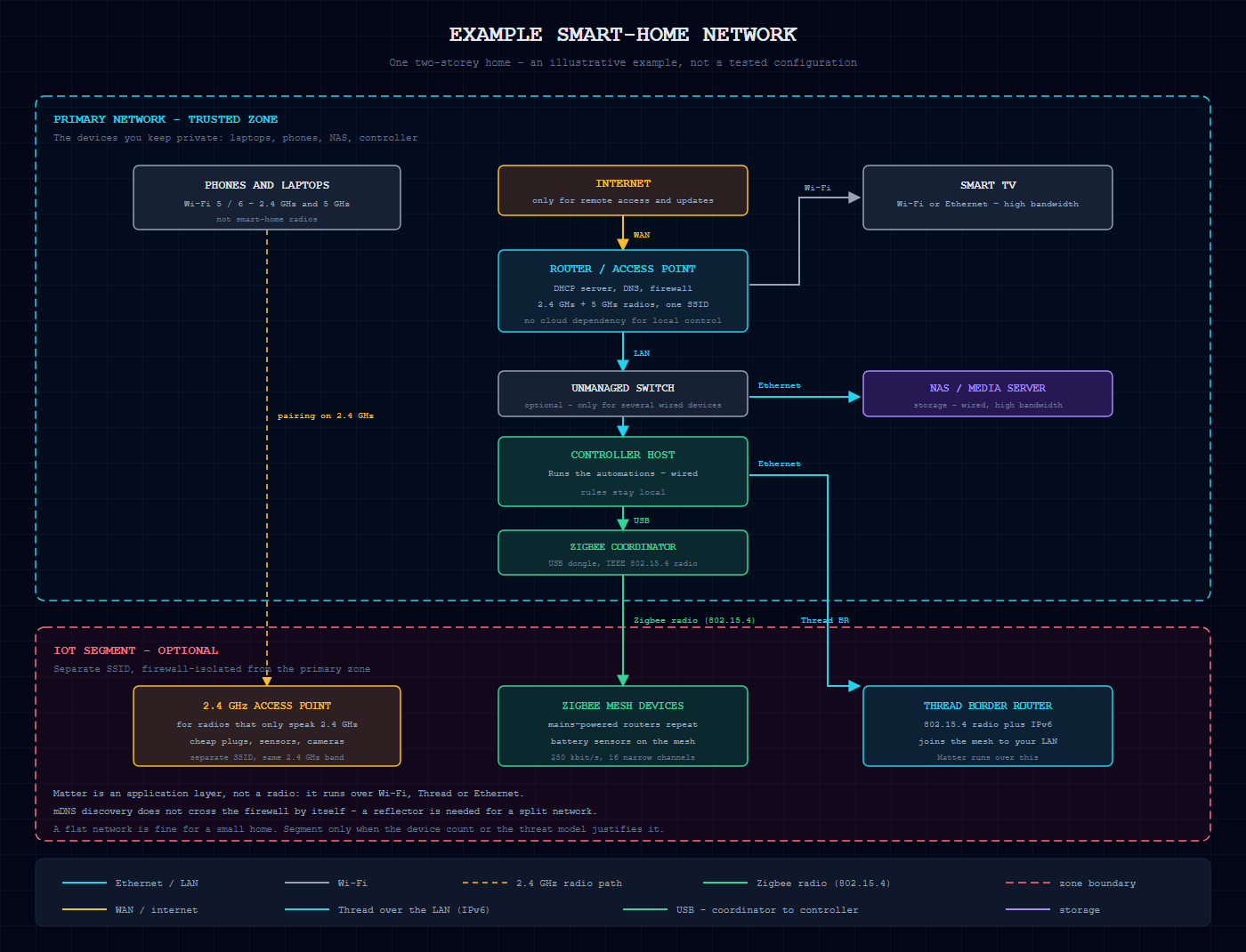
Four transports, one application layer
Most confusion in this area starts with a word used for two different things. Matter is not a radio. It is an application-layer interoperability standard: it defines how a controller and a device agree on what a light switch means, and it runs over transports that already exist. The Connectivity Standards Alliance describes Matter as a protocol that uses “existing, familiar technologies, including Bluetooth Low Energy for device setup and Wi-Fi, Thread, and Ethernet for connecting devices”.
Home Assistant’s documentation is blunter about the common mistake: “the Matter standard specification itself does not contain its own proprietary radio protocol or network transport protocol, but instead, it is a service control protocol that runs on top of the existing network infrastructure at the application level”. A Matter device is therefore a device that happens to speak one of the four transports below, and a Matter-over-Wi-Fi device is still a Wi-Fi device. When a product page lists “Matter” and “2.4 GHz”, those are two different layers of the stack.
The four transports you will actually meet:
| Transport | What the standard says it is | What it is for |
|---|---|---|
| Ethernet | IEEE 802.3, the wired LAN standard. “Speed specific Media Independent Interfaces (MIIs) allow use of selected Physical Layer devices (PHYs) for operation over coaxial, twisted pair or fiber optic cables, or electrical backplanes.” | Anything with a cable in reach: the controller host, the NAS, a TV, a switch. Removes the radio hop entirely. |
| Wi-Fi | IEEE 802.11, the wireless LAN family. “This standard defines one medium access control (MAC) and several physical layer (PHY) specifications for wireless connectivity for fixed, portable, and moving stations (STAs) within a local area.” | Bandwidth devices that move: laptops, phones, TVs, cameras. Also the only transport most cheap IoT gear supports. |
| Zigbee | IEEE 802.15.4, “low-data-rate wireless connectivity with fixed, portable, and moving devices with no battery or very limited battery consumption requirements”. 16 narrow 5 MHz channels in the 2.4 GHz band. | Mains-powered router devices that act as repeaters, plus battery-powered sensors and switches on the mesh. |
| Thread | IEEE 802.15.4 with an IP network stack on top. “Thread-based devices support the same 802.15.4 radio technology as Zigbee but use IP-based technology for the network stack.” | Low-power mesh with IP addressing. Needs a border router before anything on your LAN can reach it. |
Two consequences fall straight out of that table. First, Zigbee and Thread are not faster versions of Wi-Fi and they are not competitors to it; they are low-power mesh networks for devices that would either run out of battery or never need to carry a video stream. “Thread is a low-power mesh networking standard for IoT devices. The low-power aspect is important for battery-powered smart home devices.” Second, Thread “by itself does not allow controlling devices: It is just a communication protocol” — control needs Matter or HomeKit on top of it.
Thread needs a piece of hardware the other three do not. “A Thread border router is a network device that connects a Thread mesh network (consisting of low-power IoT devices) to other IP networks such as Ethernet or Wi-Fi.” Until that bridge exists, nothing on your ordinary LAN can reach a Thread device.
Zigbee’s mesh has the same shape, and Home Assistant describes it plainly: “Zigbee is a wireless technology that many smart home devices use, such as lights, plugs, switches, and sensors. Zigbee devices form a mesh network with a Zigbee adapter, also called a coordinator, that is connected to the system that runs Home Assistant.”
Both mesh standards are deliberately slow. The Thread Specification “uses the IEEE 802.15.4 [ IEEE802154] PHY (Physical) and MAC (Media Access Control) layers operating at 250 kbps in the 2.4 GHz band for link layer communication.” That link rate is the point: it is sized for a sensor reporting a temperature, not for a camera streaming video.
The two wired and wireless LAN standards are exact counterparts. IEEE 802.3 is the wired standard, and its scope is precise: “Speed specific Media Independent Interfaces (MIIs) allow use of selected Physical Layer devices (PHYs) for operation over coaxial, twisted pair or fiber optic cables, or electrical backplanes.” IEEE 802.11 is the wireless one: “This standard defines one medium access control (MAC) and several physical layer (PHY) specifications for wireless connectivity for fixed, portable, and moving stations (STAs) within a local area.”
What 2.4 GHz and 5 GHz actually mean
The numbers are radio frequencies. Intel’s own explainer puts it plainly: “The numbers 2.4 GHz, 5 GHz, and 6 GHz refer to the specific RF frequency bands approved for unlicensed wireless use. A lower number means fewer wave pattern repetitions over time and therefore a longer wave with longer range, while a higher number means more repetitions that can transmit more data over shorter distances.”
So the trade is speed against reach, and there is no free upgrade. Netgear’s support documentation states the consequence: “Wireless range decreases with higher frequencies because higher frequencies cannot penetrate solid objects, such as walls and floors. However, higher frequencies allow data to be transmitted faster than lower frequencies”.
There is a second, less obvious factor: how many channels each band has. “The 5 GHz band tends to have less overcrowding than the 2.4 GHz band because fewer devices use it and because it has 23 channels for devices to use, while the 2.4 GHz band has only 11 channels.” Cisco’s RF reference guide makes the same point as a capacity statement: “the 2.4-GHz band will fill up faster and support fewer users than the 5-and 6-GHz bands will”.
Why the cheap devices are all 2.4 GHz
This is the question that decides how much of your network design is driven by price rather than by preference. The answer is radio simplicity, not speed.
Zigbee “takes full advantage of a powerful IEEE 802.15.4 physical radio standard and operation in unlicensed bands worldwide at 2.4GHz (global), 915Mhz (Americas), and 868Mhz (Europe). Raw data throughput rates of 250Kbs can be achieved at 2.4GHz (16 channels)”. Thread uses “the universally supported IEEE 802.15.4 radio on the 2.4 GHz band, enabling global availability and unified device production”.
For Wi-Fi hardware, TP-Link’s documentation gives the cost argument directly: “A single-band router broadcasts on only one frequency, typically 2.4 GHz”, and a dual-band unit “broadcasts two separate Wi-Fi signals at the same time, one on the 2.4 GHz band and one on the 5 GHz band”. One antenna, one radio chain, one certification — that is the cheap path.
That is also why the setup instructions tell you to move your phone. Google’s own guidance for its smart-home devices: “some smart home devices can only use the 2.4 Ghz band and do not support 5 and 6 Ghz. To set up these devices, you may need to manually connect your phone to the 2.4 Ghz Wi-Fi band”. And on the Matter side, “Matter devices often use the 2.4 GHz frequency for Wi-Fi” — because that is a property of the Wi-Fi transport underneath, not of Matter.
Local connectivity is not the same as needing the internet
This distinction decides how a smart home behaves when the provider has a bad afternoon, and it is the single most useful thing to get right before buying anything.
Local protocols keep working with the internet down. In Home Assistant Core version 2026.11, the FAQ states it without hedging: “Devices that talk to Home Assistant using local protocols, such as Zigbee, Z-Wave, Matter, Thread, and ESPHome, do not need any internet connection at all.” The Connectivity Standards Alliance makes the same claim for Zigbee specifically: “This consistent and responsive local connectivity still works if the internet is down and doesn’t require connection with/communication to the cloud.”
Thread does not even depend on your router. The Thread Group’s own description: “Thread’s technology isn’t reliant on a home internet connection or Wi-Fi, instead, it provides a dedicated network for connecting products in the home”.
Two honest caveats. Matter is a local-connectivity technology, but a controller in the home needs an internet connection for you to control it remotely — the CSA FAQ puts it as “Matter is a local connectivity technology, so Matter-only devices require an internet-connected controller”. And some vendors still insist on an account before they will enable the local integration: “some vendors may require you to set up an account before you can enable Matter support for some products”. Local control is a property of the protocol; which vendors implement it is a property of the vendor. And the two are not exclusive: “Adding Matter to those products will enable them to use a local connection for greater reliability and responsiveness”, with the vendor’s own app still available for remote access if the vendor wants it.
Placement and coverage
Zigbee coverage is not a property of the coordinator alone. It depends on the mesh: “Zigbee relies on a concept of mesh networking with most mains-powered devices being ‘Zigbee Routers’ that act as signal repeaters and range extenders.” So the number of mains-powered devices you have matters more than the coordinator’s advertised range. Home Assistant’s guidance for the coordinator itself is about placement, not power: “Optimal placement of the Zigbee adapter is close to the middle of the house as possible.”
Thread behaves differently and more generously: “Unlike other protocols, Thread can use multiple border routers in a single network. This increases wireless coverage and reduces the risk of a single point of failure.” A border router “is connected to your network either via Wi-Fi or Ethernet and uses its RF radio chip to communicate with the Thread mesh network” — wiring one is a legitimate choice, not a compromise.
One placement trap worth naming: Home Assistant’s documentation for a wired coordinator setup with Zigbee Coordinator firmware 8.0.3.0 says “Use a wired Ethernet connection for the Connect AUX-2”, and the general guidance warns that “Common root causes of unreliable performance are often seen with outdated Zigbee Coordinator radio adapter hardware, limited by obsolete chips, bad antenna designs, or old/buggy firmware”. A coordinator plugged into a USB 3 port is a real, avoidable problem.
What actually breaks the 2.4 GHz band
Most of it is not other Wi-Fi. Cisco’s RF reference guide lists the usual suspects: “Many other non-Wi-Fi technologies also use the 2.4-GHz band for operation: microwave ovens, baby monitors, gaming consoles, Bluetooth devices, and cordless phones, to name just a few.” ASUS’s support material adds the domestic ones: “Certain household appliances like fluorescent lights, microwaves, and refrigerators may operate within this frequency range, causing interference to wireless channels.”
Two avoidable ones stand out. USB 3.x interference is documented as “widely known to affect 2.4 GHz radio reception for low-power/low-bandwidth devices” — move the coordinator dongle to a USB 2 port, or use a cable to get it away from the machine. And the walls themselves: “High-density building materials can hinder Wi-Fi signal penetration—such as drywall/plaster, wooden slats, wire mesh, metal cabinets, metal doors, and concrete walls.”
Then there is the channel collision between the three protocols that share 2.4 GHz. Thread channels 11 through 24 can overlap with 2.4 GHz Wi-Fi, including common Wi-Fi channels like 1, 6, and 11, and this overlap can cause interference that prevents the Thread radio from transmitting successfully. Zigbee sidesteps it with narrow channels: under Zigbee Coordinator firmware 8.0.3.0 with Home Assistant ZHA, “Zigbee products have access to 16 separate 5MHz channels in the 2.4GHz band, several of which do not overlap with US and European versions of Wi-Fi.” The practical recommendation, with the caveat attached, is to “only use channels 15, 20, or 25 to avoid interoperability problems with Zigbee devices” — not every Zigbee device supports every channel.
The four plumbing concepts, briefly
You do not need to become a network engineer to plan this. Four ideas carry most of the weight, and each has a plain-language version. Start with the address space itself: the Internet Assigned Numbers Authority “has reserved the following three blocks of the IP address space for private internets: 10.0.0.0 – 10.255.255.255 (10/8 prefix) 172.16.0.0 – 172.31.255.255 (172.16/12 prefix) 192.168.0.0 – 192.168.255.255 (192.168/16 prefix)” — three ranges your home network lives in, which are deliberately not routable on the public internet.
DHCP hands out addresses. In dynamic allocation, “DHCP assigns an IP address to a client for a limited period of time (or until the client explicitly relinquishes the address)”, and its job is “to provide a framework for passing configuration information to hosts on a TCPIP network” — typically the address, the mask, the gateway and the DNS server.
DNS is the separate naming layer. RFC 1034 “introduces domain style names, their use for Internet mail and host address support, and the protocols and servers used to implement domain name facilities”. DHCP and DNS are two services, not one.
Multicast is how one device talks to many at once. “Host groups are identified by class D IP addresses, i.e., those with ‘1110’ as their high-order four bits” — the range runs 224.0.0.0 to 239.255.255.255. The important boundary: it “is used to address all multicast hosts on the directly connected network. There is no multicast address (or any other IP address) for all hosts on the total Internet.”
mDNS is the zero-configuration version of DNS, and it is what your smart home actually uses to find things. RFC 6762: “Multicast DNS (mDNS) provides the ability to perform DNS-like operations on the local link in the absence of any conventional Unicast DNS server.” Two properties matter for planning. It is link-scoped — a “qualified name ending in ‘.local.’ is link-local, and names within this domain are meaningful only on the link where they originate.” And it answers on the fixed multicast address 224.0.0.251. This is how “devices to advertise their services on the local network without needing a central directory”.
SSDP is the other discovery mechanism you will meet, and it is the one smart TVs and printers use: “Devices like smart TVs, media servers, and printers often use SSDP to announce themselves on the network.”
One more piece for Thread: IPv6 is the addressing Thread uses on your LAN. The Thread Group lists “OPEN IPv6 BASED PROTOCOL” among the characteristics that define Thread, and IPv6 defines a link-local scope just like IPv4: “All interfaces are required to have at least one Link-Local unicast address”. What Thread and Matter need is not IPv6 internet but multicast reachability: “Make sure IPv6 (multicast) traffic travels freely from your network to the Home Assistant host. There is no requirement to have an IPv6-enabled internet connection or DHCPv6 server.”
Segmentation: what it costs
A separate IoT network is not a checkbox. CISA’s guidance is explicit about the goal: “connect any smart home and other IOT devices to your Guest Wi-Fi if internet access is the only thing they require. This will prevent these devices from discovering other devices on your home network, accessing your router settings, and potentially introducing vulnerabilities into your network.”
But a guest SSID only isolates if something enforces the boundary. The mechanism is the VLAN: “Most modern virtual local area networks (VLANs) can create multiple separated networks to offer your system availability to have separated networks for primary, devices, and guests.” The Canadian Centre for Cyber Security spells out what that requires in practice: “Any division of duties or roles (e.g. staff and guests) on the network should have separated network spaces controlled with client isolation, VLANs and switches, and firewall rules. Segment your network into security zones to mitigate these risks and reduce the attack surface for cyber threat actors.” And the cost is real: “Ensure the settings in your VLAN restrict guests and devices in the guest networks from interacting with devices and information in the primary network.”
The Canadian guidance also states the second benefit, which is the one people forget: “Set up a guest network to enable internet connection for your guests and for your IoT devices. This avoids sharing passwords and reduces the risk of threat actors accessing your primary network devices and sensitive information.”
Here is the bill nobody mentions before you split the network. Discovery is link-local. If your printer sits in VLAN 20 and your computer in VLAN 10, “you do not have direct access to the printer since it’s in a separate subnet. To enable your computer to communicate with the printer in VLAN 20, you must enable the Socket to function as an mDNS gateway.” Sophos documents the same requirement: “In segmented environments, devices typically can’t discover Bonjour services (Apple’s zero-configuration networking services) outside their local subnet or VLAN. mDNS reflector forwards mDNS advertisements and discovery requests between selected interfaces while maintaining network segmentation.”
Also: the guest network is itself a target. “Guest Wi-Fi networks are common targets for threat actors as they are often poorly secured.” Give it its own password and patch it like anything else.
When a separate IoT network is worth it — and when it is not
It earns its keep in two situations. The first is the pairing problem, which TP-Link describes as the most common: “Most IoT devices only work on 2.4GHz, and their setup apps require your phone to be on the same band.” A dedicated 2.4 GHz SSID turns a recurring five-minute dance into a non-event.
The second is congestion: “If you have many smart home devices (like 20+ sensors, lights, and plugs) running alongside bandwidth-heavy clients (like gaming PCs or 4K streaming TVs), your network can get congested.”
It is unnecessary complexity when the device count is small and everything sits on one band. Segmentation adds a firewall boundary, an mDNS reflector or gateway, a second set of credentials, and a second thing to troubleshoot — for a two-device flat network, that is cost without benefit. CISA also frames the firewall as the thing that makes segmentation real in the first place: “Install a firewall at the boundary of your home network to defend against external threats.”
The planning process
This is the order of operations. It is deliberately boring, and it comes before any shopping.
Step 1 — inventory what you already own. Write down every device, its protocol, and whether it is mains- or battery-powered. Start from the household’s own usage: what will actually be installed, how many devices, how many of them are battery-powered, and which need high bandwidth (cameras, video) versus control only. The battery question decides the mesh: “Zigbee and Thread offer a native standard mesh-based networking solution that is inherently low power, providing several years on a coin-cell battery for typical sensor and actuator application profiles”. If you already have a router that hands out addresses, a switch with enough ports, and a coordinator for your Zigbee kit, you may not need to buy anything. A guest network “provides an access point to the internet that is separate from your primary network” — useful, but a router that can actually enforce a firewall between segments may mean buying a different router, so check that before planning the SSID.
Step 2 — sort devices by job, not by brand. Bandwidth devices (cameras, TV, streaming) go on Ethernet where a cable is possible, otherwise 5 GHz. Low-power sensors and switches go on Zigbee or Thread. Then verify the protocol works locally: “Choosing devices that work with Home Assistant locally is the most reliable way to keep your smart home running through any kind of internet outage.”
Step 3 — plan the radio positions. Coordinator near the middle of the house, away from walls, ceilings and floors. Mains-powered devices spread through the home so the mesh has somewhere to grow. A Thread border router reachable by wire if you can get a cable to it.
Step 4 — check the interference before you buy hardware. “Try different physical placement and orientations of the Zigbee Coordinator and its antenna.” This is the cheap fix. If the survey says the problem is USB 3.x interference or a crowded band, you move something rather than buy something.
Step 5 — plan the controller’s path. A Thread border router “routes packets between your local network and the Thread mesh. The border router does not look at the content of these packets, it just forwards them” — so it has to be reachable and correctly placed. Wire the controller host. If you move a coordinator away from the machine running the controller, Home Assistant’s own guidance is to “Use a wired Ethernet connection for the Connect AUX-2” rather than a Wi-Fi link.
Step 6 — keep the radio hardware current. Outdated coordinators and buggy firmware are a named root cause of unreliable links, so update the coordinator firmware (Zigbee Coordinator firmware 8.0.3.0 is the current reference build for Home Assistant ZHA) and the controller, not just the router.
Planning worksheet
Fill this in before buying anything. It is the deliverable of this article.
| Device or role | Transport | Band | Power | Wired? | Segment |
|---|---|---|---|---|---|
| Phones and laptops | Wi-Fi – “fixed, portable, and moving stations” | 2.4 + 5 | mains | optional | primary |
| TV / streaming | Wi-Fi or Ethernet – “IEEE 802.11” / “IEEE 802.3” | 5 | mains | prefer yes | primary |
| NAS / media server | Ethernet – “IEEE 802.3”, “coaxial, twisted pair or fiber optic cables” | – | mains | yes | primary |
| Controller host | Ethernet – “Use a wired Ethernet connection for the Connect AUX-2” | – | mains | yes | primary |
| Router / AP | Ethernet + “one medium access control (MAC) and several physical layer (PHY) specifications” | 2.4 + 5 | mains | yes | primary |
| Switch | Ethernet – “coaxial, twisted pair or fiber optic cables, or electrical backplanes” | – | mains | yes | primary |
| Zigbee sensors | Zigbee – “IEEE 802.15.4”, “no battery or very limited battery consumption” | 2.4 | battery | n/a | IoT |
| Zigbee mains devices | Zigbee – “Zigbee Routers” that “act as signal repeaters and range extenders” | 2.4 | mains | n/a | IoT |
| Thread devices | Thread – “same 802.15.4 radio technology as Zigbee” with an IP stack | 2.4 | battery | n/a | IoT |
| Cheap Wi-Fi plugs | Wi-Fi – “Matter devices often use the 2.4 GHz frequency for Wi-Fi” | 2.4 | mains | n/a | IoT |
Then answer three questions. How many 2.4 GHz-only devices do you have — TP-Link’s threshold for a congested mixed network is “20+ sensors, lights, and plugs running alongside bandwidth-heavy clients”, and the separate SSID starts paying for itself well before that? How many wired devices are there in total — more than the router’s built-in LAN ports, and a switch is needed? And is there a wired path to every floor that needs coverage — if not, that is where a second access point or a Mesh repeater belongs, and that is Part 2 of this series.
Checklist for buying new smart-home hardware
- Does it work locally? Look for Matter, Zigbee or Thread support and check whether the local integration needs an account. A cloud-only device is a device that stops working when someone else’s server does: “Devices that talk to Home Assistant using local protocols, such as Zigbee, Z-Wave, Matter, Thread, and ESPHome, do not need any internet connection at all.”
- Which band does it need? If it is 2.4 GHz only, it will not join a 5 GHz-only network, and you will be moving your phone to pair it: “some smart home devices can only use the 2.4 Ghz band and do not support 5 and 6 Ghz. To set up these devices, you may need to manually connect your phone to the 2.4 Ghz Wi-Fi band.” Check the product page for the band, not the app.
- Is it mains-powered or battery? Battery devices are the ones that depend on the mesh — they need a mains-powered repeater within range, and they are the reason to keep Zigbee mains devices spread through the house.
- Which radio protocol? Matter-over-Wi-Fi, Zigbee, or Thread. If it is Thread, check that you will have a border router — “A Thread border router is a network device that connects a Thread mesh network (consisting of low-power IoT devices) to other IP networks such as Ethernet or Wi-Fi.” If it is Zigbee, check that it pairs with your coordinator’s stack: Zigbee devices “form a mesh network with a Zigbee adapter, also called a coordinator, that is connected to the system that runs Home Assistant.”
- Does it need PoE? If it does, check that the switch port supplies it. IEEE 802.3 — the wired LAN standard — “also covers power over Ethernet”, but a port that is not PoE-capable is the difference between working and not.
- Can you live with the segment? If it needs to be in the IoT segment, check your controller can still find it across the boundary — mDNS is “link-local, and names within this domain are meaningful only on the link where they originate”, so a reflector is needed.
- Is it a subscription? If the vendor needs a paid cloud account for the features you want, that changes the total cost calculation.
Verification: did the plan hold up?
Before you buy the second half of the plan, check the parts that are cheap to fix and expensive to discover late.
- Pick one 2.4 GHz-only device and pair it with your phone on the 2.4 GHz band. If that is painful, you have your answer about a separate SSID.
- Check that the coordinator is not on a USB 3 port, and move it if it is: USB 3.x devices are “widely known to affect 2.4 GHz radio reception for low-power/low-bandwidth devices”.
- Pull your router’s connected-device list. Anything on Wi-Fi that has a cable running past it is a candidate for the Ethernet plan.
- Watch for a flat network with 2.4 GHz congestion: “the 2.4-GHz band will fill up faster and support fewer users than the 5-and 6-GHz bands will”, and on Zigbee the fix may be to “only use channels 15, 20, or 25 to avoid interoperability problems with Zigbee devices” before you add hardware.
- Confirm your controller host is wired, and that a wired coordinator or border router is reachable at the speed you expect — Home Assistant’s guidance for a moved coordinator is “Use a wired Ethernet connection for the Connect AUX-2”.
Troubleshooting: the first three checks
When something misbehaves, work down this list before changing settings.
Is it a discovery problem or a connection problem? A device that joins the Wi-Fi but never appears in the controller is usually mDNS: “Multicast DNS (mDNS) provides the ability to perform DNS-like operations on the local link”, and a name ending in “.local.” is “link-local, and names within this domain are meaningful only on the link where they originate” — so the device may be on the other side of a segment boundary. A device that never gets an IP address is a DHCP problem: “DHCP assigns an IP address to a client for a limited period of time (or until the client explicitly relinquishes the address)”. A device that cannot even join the radio is an association problem, which is Part 3 of this series.
Is the band crowded? “the 2.4 GHz band has only 11 channels”, and it shares space with Bluetooth, microwaves and cordless phones: “Many other non-Wi-Fi technologies also use the 2.4-GHz band for operation: microwave ovens, baby monitors, gaming consoles, Bluetooth devices, and cordless phones, to name just a few.” Check whether your own devices are the problem before blaming the neighbours.
Is the radio where you think it is? “Try different physical placement and orientations of the Zigbee Coordinator and its antenna.” Walls, metal cabinets and concrete all cut the signal; a coordinator behind a metal cupboard is a common finding.
Limitations
This is a planning guide, not a test report. Nothing here was measured on my own hardware: there are no throughput numbers, no range tests, no timings and no prices in this article, because none were measured. Channel plans depend on the regulatory domain you live in — the “11 channels” figure quoted above is the common US/ETSI plan, and the Zigbee channel recommendation assumes devices that support the channels in question (Zigbee Coordinator firmware 8.0.3.0 with Home Assistant ZHA is the reference build). Whether your specific router can enforce a firewall between two SSIDs is a property of that router, not of the standards; the article tells you to check, not what you will find. If you want the configuration half of this, Part 2 is about the FRITZ!Box Mesh with Ethernet backhaul, and Part 3 is about the devices that refuse to connect at all.
References
Connectivity Standards Alliance, Matter FAQ — csa-iot.org/all-solutions/matter/matter-faq/
Connectivity Standards Alliance, Zigbee FAQ — csa-iot.org/all-solutions/zigbee/zigbee-faq/
Home Assistant Core version 2026.11, Matter — home-assistant.io/integrations/matter/.
Home Assistant Core version 2026.11, Thread — home-assistant.io/connectivity/thread/, “Thread uses the same RF technology as Zigbee (IEEE 802.15.4) but provides IP connectivity similar to Wi-Fi.”
Home Assistant Core version 2026.11, Zigbee — home-assistant.io/connectivity/zigbee/, “Zigbee is a wireless technology that many smart home devices use, such as lights, plugs, switches, and sensors.”
Home Assistant Core version 2026.11, ZHA — home-assistant.io/integrations/zha/, “Zigbee relies on a concept of mesh networking with most mains-powered devices being ‘Zigbee Routers’ that act as signal repeaters and range extenders.”
Home Assistant Core version 2026.11, does it work without internet — home-assistant.io/faq/works-without-internet/, “Devices that talk to Home Assistant using local protocols, such as Zigbee, Z-Wave, Matter, Thread, and ESPHome, do not need any internet connection at all.”
Home Assistant Core version 2026.11, Zeroconf — home-assistant.io/integrations/zeroconf/.
Home Assistant Core version 2026.11, SSDP — home-assistant.io/integrations/ssdp/.
Thread Group, What is Thread — threadgroup.org/What-is-Thread
Thread Group, Built for IoT — threadgroup.org/BUILT-FOR-IOT/Smart-Home
IEEE 802.3 — standards.ieee.org/standard/802_3-2022.html
IEEE 802.11 — standards.ieee.org/standard/802_11-2024.html
IEEE 802.15.4 — standards.ieee.org/standard/802_15_4-2020.html
RFC 1918 — rfc-editor.org/rfc/rfc1918.html
RFC 2131 (DHCP) — rfc-editor.org/rfc/rfc2131.html
RFC 1034 (DNS) — rfc-editor.org/rfc/rfc1034.html
RFC 1112 (multicast) — rfc-editor.org/rfc/rfc1112.html
RFC 4291 (IPv6) — rfc-editor.org/rfc/rfc4291.html
RFC 6762 (mDNS) — rfc-editor.org/rfc/rfc6762.html
CISA, Home network security — cisa.gov/news-events/news/home-network-security
CISA, Secure our world — cisa.gov/audiences/high-risk-communities/projectupskill/module5
Canadian Centre for Cyber Security, Wi-Fi security — cyber.gc.ca/en/guidance/wi-fi-security-itsp80002
Canadian Centre for Cyber Security, Guest Wi-Fi — cyber.gc.ca/en/guidance/guest-wi-fi-itsap80023
Canadian Centre for Cyber Security, Router security — cyber.gc.ca/en/guidance/routers-cyber-security-best-practices-itsap80019
Cisco, Wireless RF Reference Guide — cisco.com wireless RF reference guide
Intel, 2.4 GHz vs 5 GHz — intel.com 2.4 vs 5 GHz
Netgear, Wireless frequency differences — kb.netgear.com/29396
TP-Link, What is a dual-band router — tp-link.com/us/blog/2753
TP-Link, Separate IoT network — tp-link.com/us/support/faq/4420
Google, Smart device setup — support.google.com/googlehome/answer/6293481
ASUS, Wi-Fi interference in the home — asus.com/support/faq/1044838
Cato Networks, mDNS between subnets — knowledge.catonetworks.com mDNS between subnets
Sophos Firewall, mDNS — docs.sophos.com nsg mDNS
Texas Instruments, Zigbee and Thread mesh white paper — ti.com/lit/wp/sway012/sway012.pdf